
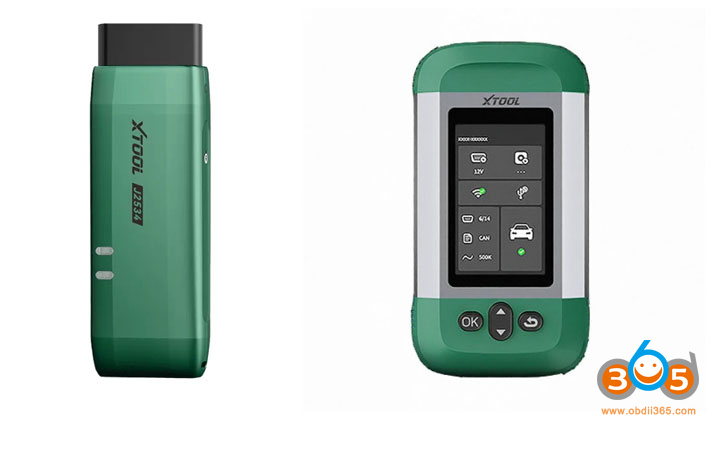
Equipped with an NXP processor, XTOOL’s latest VCI (comes with Prodigy and Compass Master) supports wired and stable Wi-Fi 2.4G connections. It covers all major protocols including Dual-CAN, DoIP, and CAN FD. With built-in J2534 passthru, it works with OEM software from 10+ brands.
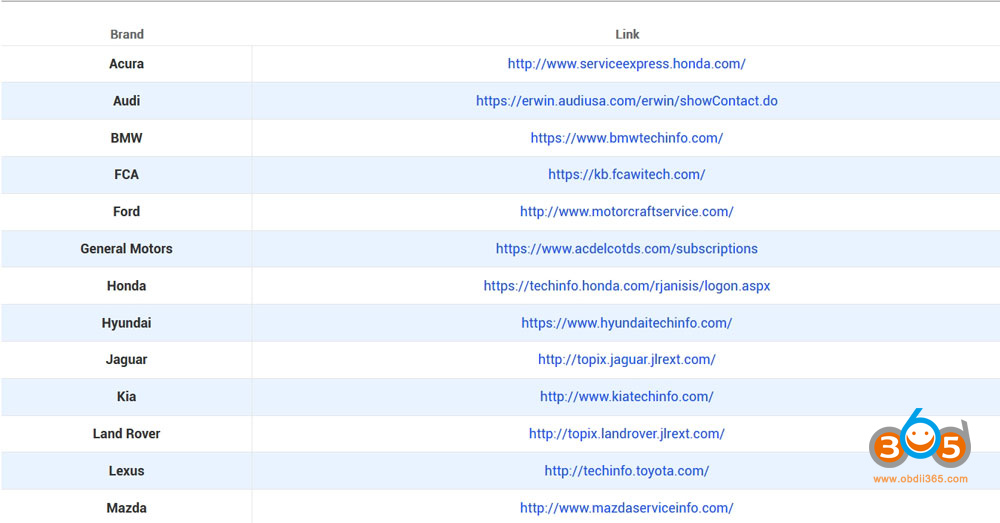
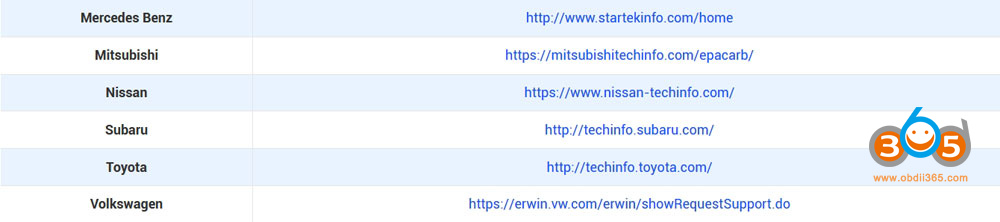
Xtool new J2534 Passthru VCIs supports following OEM software:
Here we will show how to set up Xtool J2534 with OEM software. Take Toyota techstream as an example.
The setup method is different from the old gray Xtool J2534 VCI.
The process begins by plugging the VCI (Vehicle Communication Interface) into the car’s OBD-II port, typically located under the dashboard. Then, using the provided wireless USB adapter, you establish a connection between the VCI device and your laptop.


Visit the official XTOOL website to download the essential J2534 ToolBOX driver.
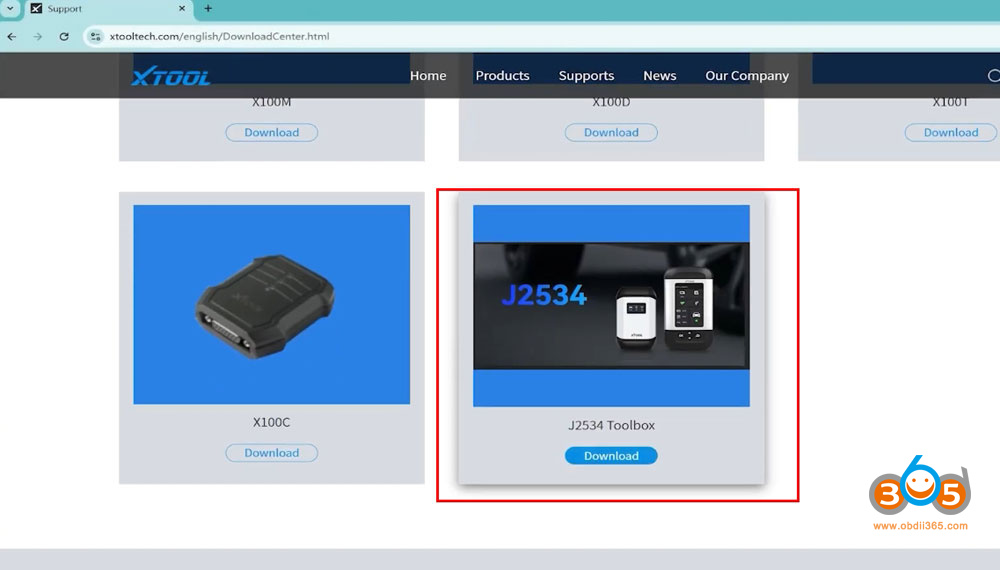
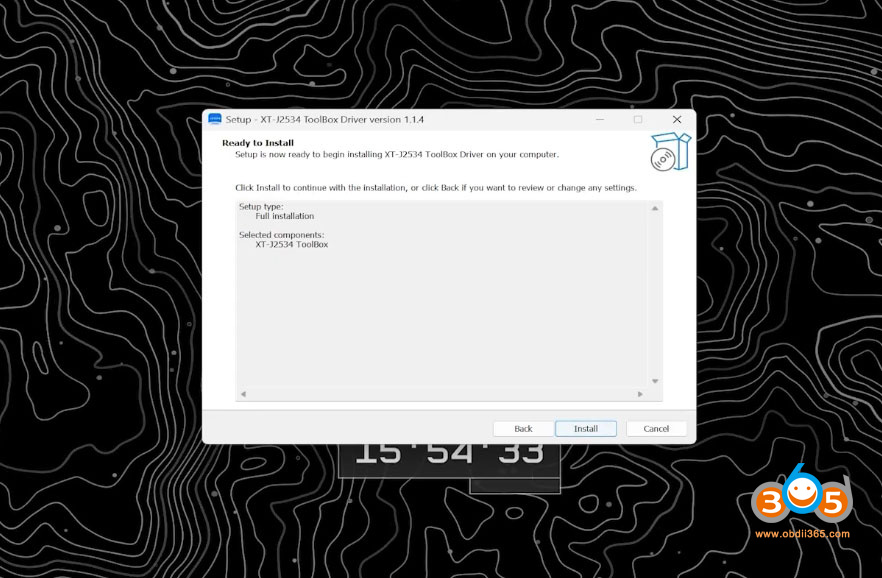
After the download is completed, unzip it and click “Setup.exe”, then follow the installation process. We suggest you to restart your PC after installation.
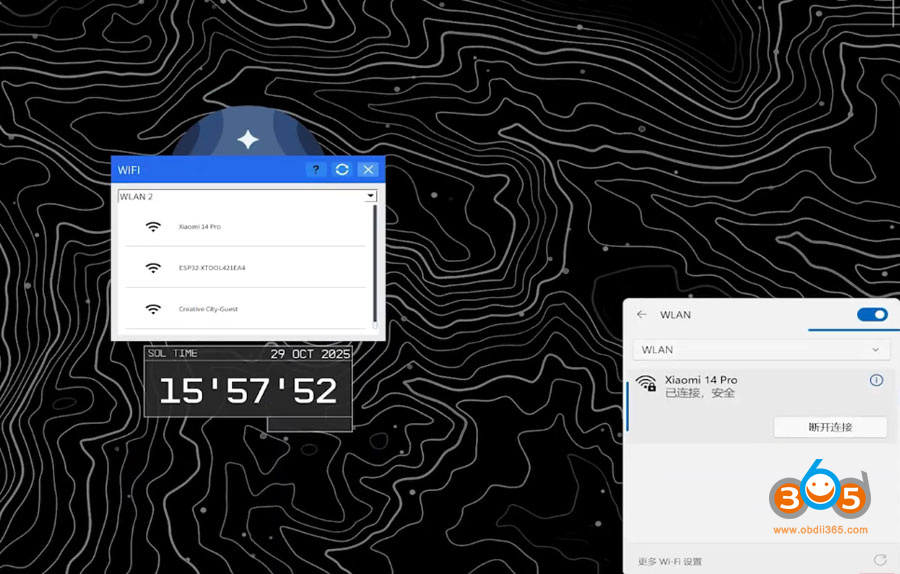
The J2534 will connect via USB or WiFi.
1). Device Connection – Wired
Directly connect the VCI to the diagnostic PC via USB cable. The Toolbox will automatically detect the device when you connect it.
If the status has not been refreshed after you connect the VCI via wire, click the Refresh button to try again.
2). Device Connection – Wireless
1. Plug in the WiFi Receiver that comes with the VCI box.
2. Click the WiFi button on the bottom-left corner and select “WLAN 2” (or other numbers)
3. Find the hotspot that names the same as the SN of the VCI box and click “Connect”
4. When the connection is ready, you are OK to go.
Here we connect via WiFi.
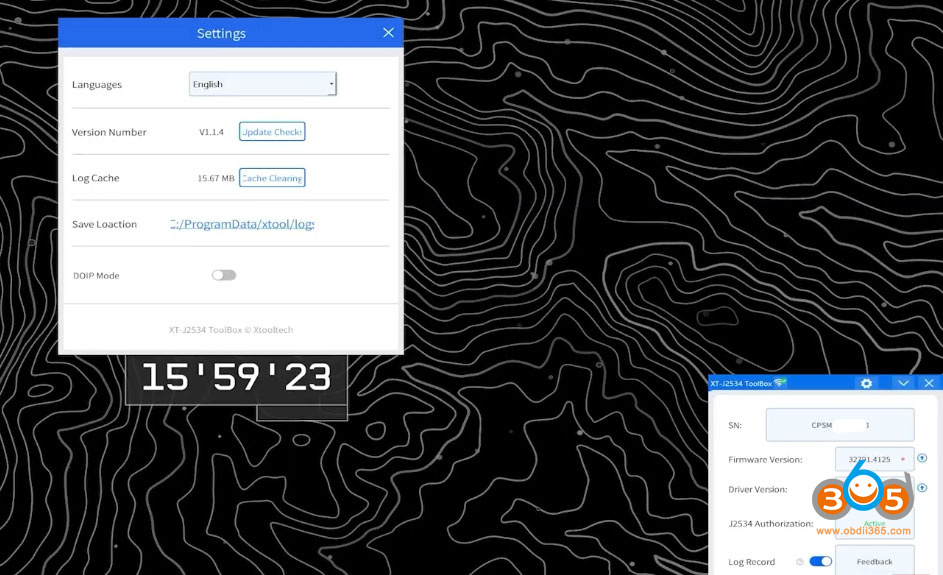
When the J2534 VCI is connected over WiFi, you can see the VCI SN, firmware and driver version. Select driver language.
Keep versions up-to-date if there is new version is available.
Now download original manufacturer software from the corresponding website and choose subsciption plan.
For example, download Toyota TIS Techstream.
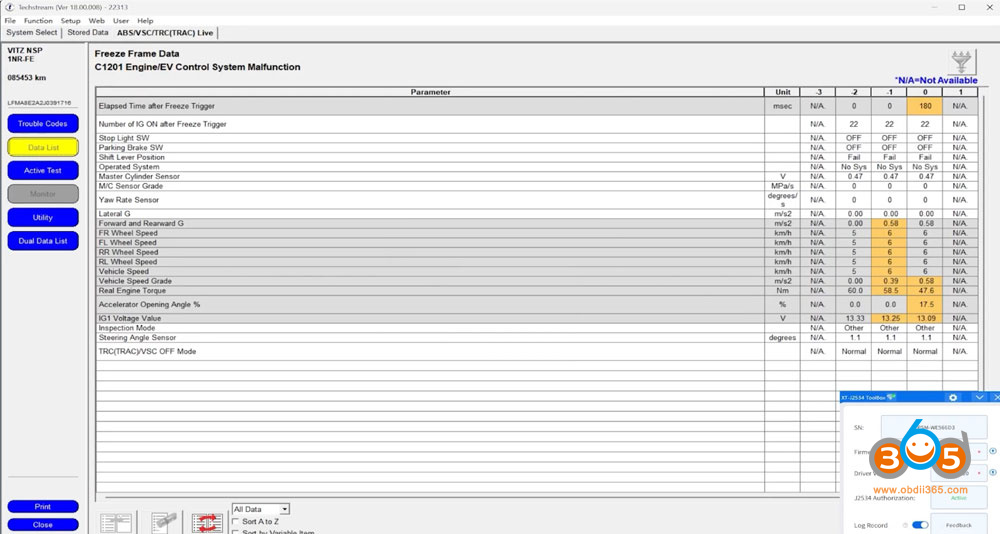
Run software, go to Function- VIM Selection- select interface as XTool J2534.
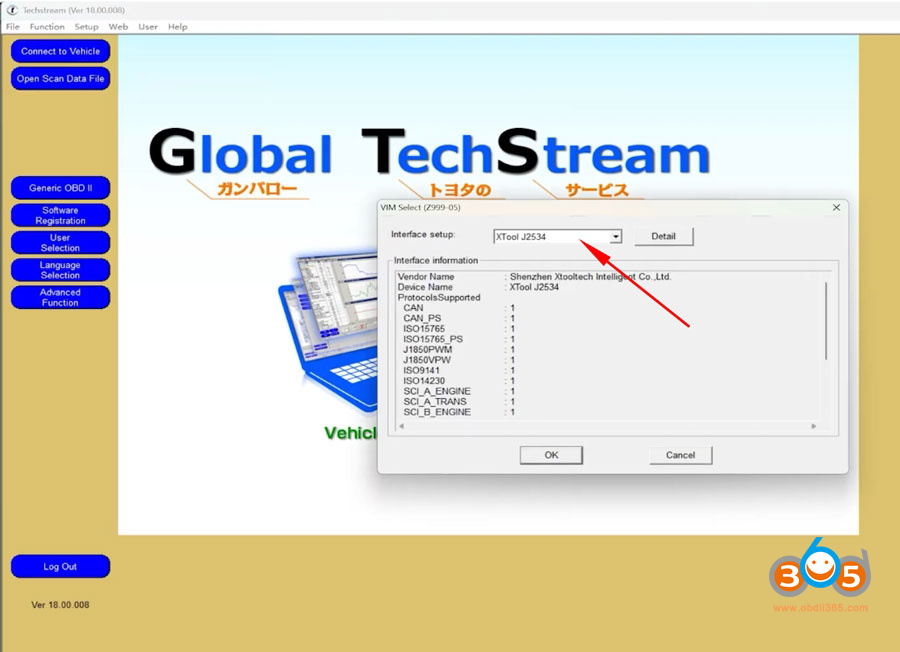
Choose vehicle information and start diagnosis or programming.